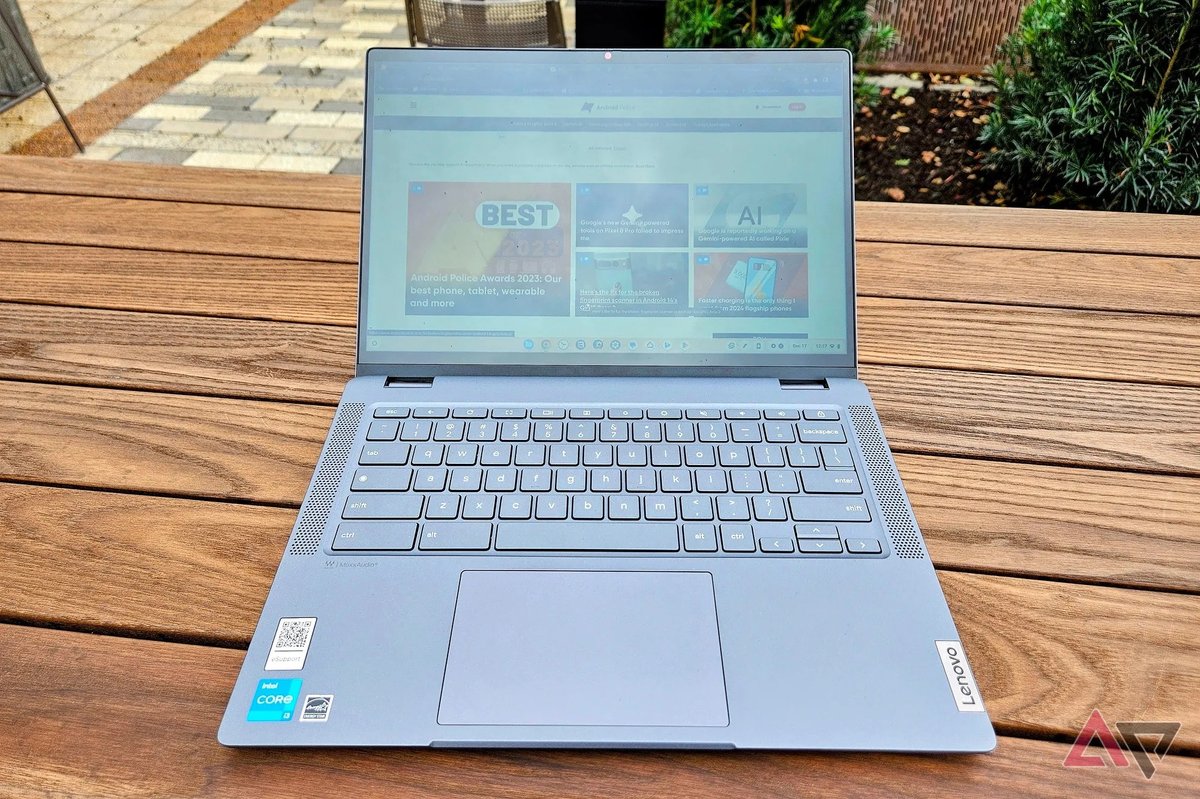
When your Chromebook's touchscreen suddenly decides it wants to be on all the time, stubbornly refusing to dim or turn off when you need it to, it can be incredibly frustrating. Whether you're dealing with phantom touches, trying to clean the display, or simply prefer using a mouse and keyboard, learning how to gain control over your touchscreen is a vital skill for any Chromebook user. This comprehensive guide will walk you through proven methods for Troubleshooting When Your Chromebook Touchscreen Won't Turn Off, offering solutions ranging from quick fixes to more advanced controls.
At a Glance: Key Takeaways for Touchscreen Control
- The quickest and most popular method for temporary touchscreen control is the
Search + Shift + Tshortcut, but it requires a quick flag enablement first. - For a more persistent (though not always truly "permanent") disable, combine Chrome Flags with the debugging shortcut.
- School or managed Chromebooks often block advanced settings, limiting your options and potentially requiring IT intervention.
- Disabling your touchscreen is safe and won't harm your device's hardware, offering only a marginal battery life improvement.
- Always back up your data before enabling Developer Mode, as it involves a complete device wipe.
Why Your Touchscreen Might Be Acting Out (and Why You'd Want It Off)
Chromebooks are known for their simplicity and robust integration of hardware and software. For many models, the touchscreen is a core feature, designed to always be available, especially in 2-in-1 convertible devices. This seamless integration often means there isn't a simple "on/off" switch buried in the main settings.
However, there are plenty of good reasons you might want to disable it:
- Accidental Taps: Ever tried to type on your physical keyboard only for your palm to register an errant tap on the screen, sending your cursor flying or opening an unintended app? It's a common annoyance.
- Cleaning: Wiping down a greasy screen is a nightmare when every swipe registers as an input. Disabling the touch input beforehand makes cleaning a breeze.
- "Ghost Touches" or Phantom Input: This is particularly common with cracked or damaged screens. Even tiny hairline fractures can cause the touchscreen digitizer to register non-existent taps, leading to apps opening randomly, cursors dancing across the screen, or unwanted typing. Turning off the touchscreen is often the only way to make a damaged device usable until repairs.
- Preference: Some users simply prefer the precision of a touchpad or external mouse and keyboard, finding the touchscreen more of a distraction than a convenience.
- Troubleshooting: If you suspect a software glitch is causing erratic touch behavior, temporarily disabling and re-enabling the touchscreen can help diagnose the problem.
Google designed ChromeOS to be intuitive, but sometimes that means a lack of direct toggles for features it considers "always on." Thankfully, the community and developers have found clever workarounds that offer you the control you need.
Your Go-To Toolkit: Core Methods to Master Your Touchscreen
Let's dive into the most effective ways to tell your Chromebook's touchscreen to take a break. We'll start with the easiest and most common, then move to more advanced options.
1. The Quick-Toggle Debugging Shortcut: Search + Shift + T (Your Best Friend)
This is by far the most popular, fastest, and most convenient method for toggling your touchscreen on or off. It’s temporary, meaning it usually persists through a sleep cycle but might reset after a full power-off or restart. The catch? You need to enable a hidden feature first.
Step-by-Step Activation and Use:
- Enable the Feature (One-Time Setup):
- Open your Chrome browser.
- In the URL bar, type or paste:
chrome://flags/#ash-debug-shortcuts - This will take you directly to the "Debugging keyboard shortcuts" flag.
- Click the dropdown menu next to it (it will likely say "Default") and change it to "Enabled."
- A prompt will appear at the bottom right of your screen asking you to "Restart" your Chromebook. Click it. Your device will reboot.
- Using the Shortcut to Toggle:
- Once your Chromebook has restarted, you're ready to go!
- To turn off your touchscreen, simply press the following keys simultaneously:
Search + Shift + T. - You'll see a brief notification pop up at the bottom right of your screen confirming "Touchscreen disabled" or "Touchscreen enabled."
- The
Searchkey is typically located where the Caps Lock key would be on a standard keyboard. It often has a magnifying glass icon. If you're using an external Windows keyboard, theWindows Keyusually functions as theSearchkey. - Pro Tip: This incredibly useful shortcut also works for your touchpad! Just press
Search + Shift + Pto toggle your touchpad on or off. This is a lifesaver if you're using an external mouse.
This method is fantastic for quickly disabling touch for a cleaning session or dealing with a temporary glitch. For many users, mastering Chromebook keyboard shortcuts like this one can significantly enhance their daily workflow. If you notice your touchscreen reactivating after a cold boot, don't worry—just hitSearch + Shift + Tagain.
2. Going Deeper with Chrome Flags: A "Set It and Forget It" Approach (Mostly)
While the Search + Shift + T shortcut is quick, it doesn't always provide a truly permanent solution. For something more persistent, you can delve into other Chrome Flags. This method aims to tell ChromeOS to ignore touch input more fundamentally.
Process for Persistent Disabling:
- Access Chrome Flags:
- Open your Chrome browser.
- Type
chrome://flagsinto the URL bar and pressEnter. - This page is a treasure trove of experimental features, but also a potential minefield if you're not careful.
- Search for Touch-Related Flags:
- In the search bar at the top of the Chrome Flags page, type "Touch."
- Look for flags related to "Touch UI Layout," "Touch Events API," or similar descriptions that control how ChromeOS handles touch input. The exact names can change with ChromeOS updates.
- Common Flags to Target (look for similar names if these aren't exact):
Touch UI LayoutTouch Events API- For each relevant flag you find, click the dropdown menu and change its setting from "Default" to "Disabled."
- Just like with the debugging shortcuts, you'll need to restart your Chromebook after changing these flags for the changes to take effect.
Important Risk Warning:
Chrome Flags are experimental features. Changing flags randomly or without understanding their function can lead to system instability, unexpected behavior, or even render some parts of your Chromebook unusable. Always exercise caution. Moreover, flags can sometimes reset to "Default" during major ChromeOS updates, meaning you might need to reapply these settings periodically. Understanding the risks of understanding the risks of Chrome Flags is crucial before making changes.
3. Checking Your Chromebook's Built-In Settings (Model-Dependent)
While rare, some newer, higher-end Chromebooks, especially those designed as premium 2-in-1 devices, do offer a direct toggle for the touchscreen within the main system settings. This is the cleanest solution if your device supports it.
How to Check:
- Click on the Time in the bottom-right corner of your screen (where the Wi-Fi, battery, and notification icons are).
- Click on the Gear icon to open your Chromebook's Settings.
- In the Settings window, look for a section related to "Device" or "Display."
- Within these sections, browse for options like "Touchscreen," "Displays," "Input," or similar.
- If available, you might find a toggle or checkbox labeled "Enable Touchscreen" or "Touch input." Simply uncheck or toggle it off.
If you don't see any such option, it means your Chromebook model doesn't have a direct software toggle, and you'll need to rely on the Chrome Flags or debugging shortcut methods.
4. The Advanced Route: Terminal Commands (Developer Mode Required)
For ultimate control, or if other methods fail, you can disable the touchscreen using terminal commands. However, this method requires enabling Developer Mode, which comes with significant caveats. This path is primarily for advanced users who understand the implications.
Crucial Warning: Data Loss Ahead!
Enabling Developer Mode on a Chromebook always involves a complete wipe of all local data on your device. This is a security feature to protect user data from tampering. Backup everything important (documents, photos, downloads) to Google Drive or an external drive before you proceed.
Step-by-Step for Developer Mode and Terminal Commands:
- Backup Your Data: Seriously, do this now.
- Enable Developer Mode:
- Turn off your Chromebook.
- Hold down
Esc + Refresh(the Refresh key is often a circular arrow above the '3' key) and then press thePowerbutton. - Your Chromebook will boot into Recovery Mode.
- At the recovery screen, press
Ctrl + D. - You'll be asked to confirm. Press
Enter. - Your device will restart and begin the process of enabling Developer Mode. This can take 15-20 minutes and involve several reboots. Do not interrupt this process. Your Chromebook will display a "OS verification is OFF" warning every time it boots; this is normal in Developer Mode. Press
Ctrl + Dor wait 30 seconds to proceed. - After the setup is complete, you'll go through the initial Chromebook setup process again.
- Disable Touchscreen via Crosh Terminal:
- Once in Developer Mode and logged in, open the Crosh terminal by pressing
Ctrl + Alt + T. - In the Crosh terminal, type
shelland pressEnter. This gives you access to a more powerful Linux-like shell. - Now, you need to identify your touchscreen device. Type
xinput listand pressEnter. - This will display a list of all input devices. Look for entries that clearly identify your touchscreen, such as "ELAN Touchscreen," "Atmel Touchscreen," "Goodix Touchscreen," or similar. Note down the ID number associated with your touchscreen device (it's usually a small integer like 8, 9, 10, etc.).
- To disable the touchscreen, type the following command, replacing
IDwith the actual number you noted:xinput disable ID
For example, if your touchscreen ID is 9, you would typexinput disable 9. - Press
Enter. Your touchscreen should immediately stop responding.
- Re-enabling with Terminal Commands:
- To re-enable your touchscreen later, use the same process, but with
enableinstead ofdisable:xinput enable ID
Important Considerations for Terminal Commands: - Temporary: Settings made with
xinputare typically temporary and will reset after a restart or power cycle. For persistent changes, you'd need to delve into more advanced Linux scripting to automatically apply the command on boot, which is beyond the scope of a typical user guide and requires significant Linux knowledge. - Developer Mode Risks: Running in Developer Mode has security implications and can make your device less stable. It also means you'll always see the "OS verification is OFF" screen at startup. Diving into Developer Mode on your Chromebook is a commitment you should fully understand.
Navigating Specific Scenarios & Common Hurdles
Not all Chromebooks or situations are the same. Here’s how to tailor your approach:
School Chromebooks: When Administrators Rule
If you're using a Chromebook provided by a school, university, or workplace, it's likely a managed device. This means administrators have control over many settings and may block access to chrome://flags or Developer Mode.
- Blocked Flags: If you try to access
chrome://flagsand it's blocked, you're out of luck for Methods 1 and 2. - Developer Mode: Enabling Developer Mode is usually blocked on managed devices, or even if it's technically possible, it will likely unenroll the device from the school's management system, which can cause significant issues and potentially violate your institution's policies.
- What to Do:
- Ask IT: Your best bet is to contact your school's or organization's IT department. Explain why you need the touchscreen disabled (e.g., "ghost touches" from a broken screen). They might have internal tools or be able to change settings for your specific device.
- Temporary Fixes (Limited): Some Chromebooks, especially 2-in-1s, have a "cleaning mode" that temporarily disables touch. This is usually activated by a specific key combination (often
Search + Brightness Downor similar, check your model's manual). A "Hard Refresh" (Refresh + Power) can sometimes fix temporary glitches, but won't permanently disable touch.
Dealing with Brand-Specific Quirks
While ChromeOS aims for consistency, certain hardware designs can introduce unique issues:
- HP x360 Models: These 2-in-1 devices are prone to "ghost touches," especially if the hinges become slightly misaligned over time or if the screen is under stress. The
Search + Shift + Tshortcut is particularly effective here as a quick fix. Also, ensure the device isn't mistakenly in Tablet Mode if you're trying to use it as a laptop, as this can sometimes trigger unwanted touch behavior. - Acer Chromebooks (e.g., 315, Spin Series): Generally follow standard Chrome Flags protocols. The
Search + Shift + Tmethod andchrome://flagsapproach should work as described. - Lenovo 300e Series: Often used in educational settings, these models are frequently managed. If you're encountering issues on a Lenovo 300e, especially if it's a school device, IT intervention is almost certainly required.
The Best Approach for a Broken Screen
If your Chromebook screen is cracked or damaged and causing uncontrollable "ghost touches," the priority is to make the device usable again without replacing the screen immediately.
- Recommendation: The Debugging Shortcut (
Search + Shift + T) is your hero here. Enable theash-debug-shortcutsflag once (as described in Method 1), then use the shortcut to instantly disable the touch. It will remain off for your current session, allowing you to use your Chromebook with a mouse/touchpad and keyboard without interference. You might need to re-apply it after a full shutdown or Powerwash.
Aiming for a Truly Permanent Disable
No method outside of physically disconnecting the digitizer cable (which is not recommended for users) is truly "permanent" and guaranteed to survive every single ChromeOS update or hard reset. However, you can achieve the closest thing to it:
- Recommendation: Combine the power of Chrome Flags. Enable the "Debugging keyboard shortcuts" flag (Method 1) and then use the
Search + Shift + Tshortcut to toggle the touchscreen off. This pairing offers the most persistent solution without the complexities and data loss risks of Developer Mode. While a major ChromeOS update might reset flags, you'll still have the quick shortcut ready to re-disable it if needed.
Quick Troubleshooting Tips
Sometimes, things don't go as planned. Here are common issues and what to do:
Search + Shift + Tdoes nothing:- Check the Flag: Most likely, the
ash-debug-shortcutsflag is not enabled. Go back tochrome://flags/#ash-debug-shortcutsand ensure it's set to "Enabled," then restart your Chromebook. - Correct Key: Confirm you're pressing the correct
Searchkey (often where Caps Lock is, or theWindows Keyon external keyboards). - Touchscreen reactivates after a cold boot:
- This is expected behavior for the
Search + Shift + Tshortcut on some devices. Simply press the shortcut again. If you enabled otherchrome://flagsto disable touch, revisit thechrome://flagspage to ensure they haven't reset to "Default" after an update. - No change after modifying Chrome Flags:
- Did you restart your Chromebook after changing the flag settings? Flags require a full restart to take effect.
- Are you targeting the correct flags? Flag names can sometimes change. Try searching broadly for "touch" or "input" in
chrome://flags. - Cannot access
chrome://flagson a school/work Chromebook: - This is typically due to administrator policies. You'll need to contact your IT support for assistance.
- Solving common Chromebook issues often involves understanding these administrative limitations.
Re-enabling Your Touchscreen
Changed your mind? No problem. Getting your touchscreen back is just as straightforward:
- Debugging Shortcut: If you disabled it with
Search + Shift + T, simply pressSearch + Shift + Tagain to toggle it back on. - Chrome Flags: Go back to
chrome://flags(e.g.,chrome://flags/#ash-debug-shortcutsfor the debugging shortcuts, or search for other "Touch" flags you disabled) and change their settings back to "Default". Restart your Chromebook. - System Settings: If your Chromebook had a direct toggle in Settings (Method 3), simply toggle it back on.
- Terminal Commands: If you used
xinput disable IDin Developer Mode, open the Crosh terminal (Ctrl + Alt + T), typeshell, and then executexinput enable ID(replacingIDwith your touchscreen's ID number).
Addressing Common Questions
Let's clear up some common thoughts you might have about disabling your touchscreen.
Does Disabling the Touchscreen Improve Battery Life?
While it might seem logical that turning off a component would save power, the reality is that the touchscreen digitizer typically draws very minimal power when not actively being touched. Disabling it through software commands usually results in only a marginal, almost negligible improvement in battery life. The backlight and the screen itself consume far more power. Don't disable your touchscreen purely for battery conservation; there are more effective strategies for that.
Is Disabling My Touchscreen Safe for My Hardware?
Yes, absolutely. Disabling the touchscreen using any of the software-based methods described (shortcuts, flags, system settings, or terminal commands) is perfectly safe. You are merely telling the ChromeOS operating system to ignore input from the digitizer; you are not causing any physical damage or stress to the hardware. It's akin to unplugging a mouse – the mouse isn't damaged, the computer just stops listening to it.
Your Next Steps for Ultimate Touchscreen Control
By now, you should feel equipped to take control of your Chromebook's touchscreen, whether it's for a quick cleaning, to manage a faulty screen, or simply out of preference. The Search + Shift + T shortcut, after enabling its flag, is hands down the most versatile tool in your arsenal, offering a balance of ease and effectiveness for most users.
Remember to choose the method that best suits your needs and technical comfort level. For school or work devices, always check with your IT department first. And if you're ever venturing into Developer Mode, be absolutely sure you've backed up your precious data.
Ultimately, your Chromebook should work for you, and having the ability to manage its features, even hidden ones like the touchscreen toggle, empowers you to tailor your experience. For a broader overview of managing your touch interface, you might also find this guide on how to turn off Chromebook touch helpful. Happy computing!