Chromebooks are fantastic for their versatility, often combining the best of laptops and tablets in one device. However, there are times when that handy touchscreen can become more of a hindrance than a help. Whether it's preventing accidental touches while typing, focusing on your work without distractions, or simply extending battery life, knowing how to toggle your touchscreen off can be a game-changer.
This comprehensive guide will walk you through the various methods to disable your Chromebook's touchscreen, from simple keyboard shortcuts to more advanced techniques. We'll also help you understand when and why you might want to make this change, and how to troubleshoot if things don't go as planned.
Why Disabling Your Chromebook Touchscreen Can Be a Smart Move
While the touchscreen is a core feature for many Chromebook users, there are plenty of valid reasons to turn it off. For students taking standardized tests or focusing on a specific learning activity, disabling touch input can minimize confusion and accidental interactions. Similarly, if you frequently find your palm brushing the screen while typing, leading to unwanted clicks or cursor jumps, turning off the touchscreen offers immediate relief.
Beyond practical convenience, consider the benefits for screen cleanliness and even potential battery savings, as the touchscreen uses power. Sometimes, erratic "ghost touches" or an unresponsive screen might even hint at a software glitch that can be temporarily resolved by disabling the feature. To dive deeper into these scenarios and understand all the compelling arguments, explore our detailed analysis of Reasons and Scenarios for Turning off your Chromebook's touch functionality.
Your Quickest Fix: Turning Off Touch with Keyboard Shortcuts
For most users looking for a fast, non-permanent solution, using Chrome Flags combined with a simple keyboard shortcut is the most recommended approach. This method allows you to toggle your touchscreen on or off in an instant, perfect for those moments when you need to switch between modes.
Here's how to enable this powerful shortcut:
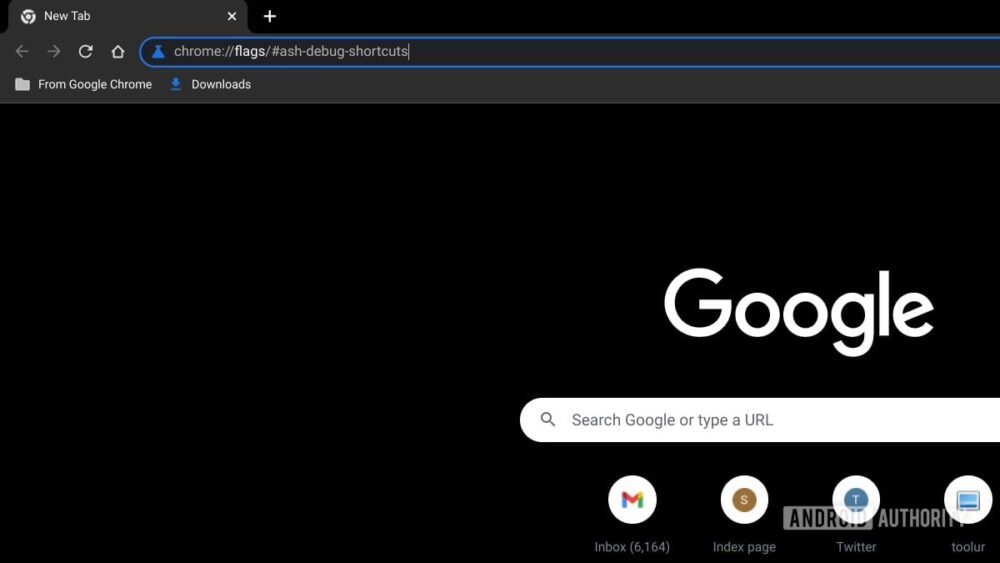
- Open Chrome Flags: Type
chrome://flags/#ash-debug-shortcutsinto your Chromebook's browser and hit Enter. This will take you directly to the relevant setting. - Enable Debugging Shortcuts: Locate the "Debugging keyboard shortcuts" option. Using the drop-down menu next to it, change its status from "Default" or "Disabled" to "Enabled."
- Restart Your Chromebook: Click the "Restart" button that appears at the bottom of your screen. Your Chromebook will reboot, applying the new flag setting.
- Toggle with a Shortcut: Once your Chromebook restarts, simply press
Shift + Search + T(the Search key is usually located where Caps Lock would be) to toggle your touchscreen on or off. You'll see a brief notification confirming the change.
This method offers quick toggling without any data loss and is easily reversible. It's often the first step people take when they want to How to disable Chromebook touchscreen effectively. Keep in mind that Chrome Flags are experimental, meaning they might change or reset after major Chrome OS updates, so it's good to be aware.
Alternative Methods to Control Your Touchscreen
While keyboard shortcuts via Chrome Flags are highly effective, they aren't the only way to manage your touchscreen. Depending on your Chromebook model and Chrome OS version, you might find native settings or, for advanced users, even command-line options.
Checking Chrome OS Settings for a Native Toggle
Some Chromebooks, particularly newer models or specific brands like HP, offer a dedicated "Touchscreen" toggle directly within the standard Chrome OS Settings. This is often the most stable and integrated way to control the feature if available.
To check for this option:
- Click the time/date in the bottom-right corner to open Quick Settings, then click the gear/cog icon to enter the main Settings menu.
- In the left sidebar, navigate to the "Device" section.
- Look for subsections like "Display," "Touchpad and stylus," or "Input devices." You might find a direct "Touchscreen" toggle here. Also, explore "Accessibility" or "Advanced" settings, as the option can sometimes be nested elsewhere.
If you find a built-in toggle, it provides a stable and easily reversible control without experimental flags.
Advanced Users: Disabling Touch via Terminal Commands
For users comfortable with command-line interfaces, the Crosh terminal offers a powerful, albeit temporary, way to disable the touchscreen. However, this method first requires enabling Developer Mode, which performs a complete data wipe (Powerwash) of your device. Always back up all your important data before proceeding with Developer Mode.
After enabling Developer Mode and completing the initial setup, you can:
- Open the Crosh terminal by pressing
Ctrl + Alt + T. - Type
shelland press Enter to access the full Linux shell. - Type
xinput listand press Enter to see a list of all input devices. - Identify your touchscreen device from the list (e.g., "ELAN Touchscreen") and note its ID number.
- Type
xinput disable <ID number>(e.g.,xinput disable 12) and press Enter to disable it.
Remember, settings made via terminal commands are typically temporary and will reset after a restart unless you implement very advanced persistent configurations.
The Difference Between Touchscreen and Touchpad
It's crucial to understand that your Chromebook's touchscreen (the display you interact with directly) and its touchpad (the surface below your keyboard for mouse control) are distinct input devices. While this guide primarily focuses on disabling the touchscreen, you might also want to control your touchpad. The good news is that if you've enabled debugging keyboard shortcuts, you can usually toggle your touchpad with a similar shortcut: Shift + Search + P. For a more in-depth explanation of these two critical input methods and how to manage them separately, consider reading our article on Whats the difference: Touchscreen vs Touchpad.
When Your Touchscreen Won't Cooperate: Troubleshooting Tips
Sometimes, the issue isn't just about disabling the touchscreen, but resolving its misbehavior. If you're experiencing "phantom touches," delayed responses, or dead zones, disabling and re-enabling the touchscreen can be a useful diagnostic step.
Before diving into complex solutions, try these basic troubleshooting steps:
- Clean Your Screen: A dirty screen can often cause phantom touches. Use a microfiber cloth and a screen-safe cleaner.
- Restart Your Chromebook: A simple reboot can resolve many temporary software glitches.
- Update Chrome OS: Ensure your device is running the latest version of Chrome OS, as updates often include bug fixes.
- Test in Safe Mode (Guest Mode): Sign in as a guest to see if the issue persists. If it doesn't, a problematic extension or user setting might be the cause.
If these steps don't resolve persistent issues, or if your touchscreen simply won't turn off when you try, you might need more specific guidance. Our dedicated troubleshooting guide, Troubleshooting When Chromebook Touchscreen Wont, offers detailed solutions for when your touchscreen seems stuck or unresponsive.
How to Re-enable Your Chromebook Touchscreen
What if you've turned off your touchscreen and now you want it back? Re-enabling it is just as straightforward as disabling it, regardless of the method you used.
- Using Chrome Flags/Keyboard Shortcut: If you used the
Shift + Search + Tshortcut, simply press it again. This will toggle the touchscreen back on. Alternatively, you can navigate back tochrome://flags/#ash-debug-shortcuts, set "Debugging keyboard shortcuts" back to "Default" (or "Disabled"), and restart your Chromebook. - Through Chrome OS Settings: If your Chromebook has a native toggle in the settings, simply navigate back to Settings > Device and flip the "Touchscreen" switch back to the "Enabled" position.
- With Terminal Commands: If you disabled it via the Crosh terminal, open the terminal again (
Ctrl + Alt + T, thenshell), and typexinput enable <ID number>using the original device ID you noted.
Having a clear plan for restoration is just as important as knowing how to disable it. For a complete walkthrough of all methods and what to do if you encounter issues getting your touch functionality back, refer to our comprehensive guide on Fix your Chromebook touchscreen Re-enable your and get it working perfectly again.
Choosing the Best Method for Your Needs
Ultimately, the best way to turn off your Chromebook's touchscreen depends on your specific needs and comfort level.
- For occasional use or troubleshooting: The Chrome Flags method with keyboard shortcuts is highly recommended for its ease and flexibility.
- For a stable, long-term solution (if available): Check your Chrome OS Settings for a native touchscreen toggle first.
- For advanced users willing to accept risks: Terminal commands offer control but come with the prerequisite of Developer Mode and data wipes.
- For temporary, non-technical prevention: Physical solutions like screen protectors or overlays can provide a quick barrier.
Always keep your Chrome OS updated, clean your screen regularly, and monitor the availability of Chrome Flags as they can change. By understanding these options, you're empowered to tailor your Chromebook experience exactly to your preferences, ensuring your device works for you, not against you.